
Voice over Internet Protocol (VoIP) phones have transformed business and home communication by offering flexible, scalable, and cost-effective calling. Whether you’re performing a VoIP installation for your office or completing a VoIP phone setup at home, this step-by-step guide covers everything you need.
VoIP Setup Requirements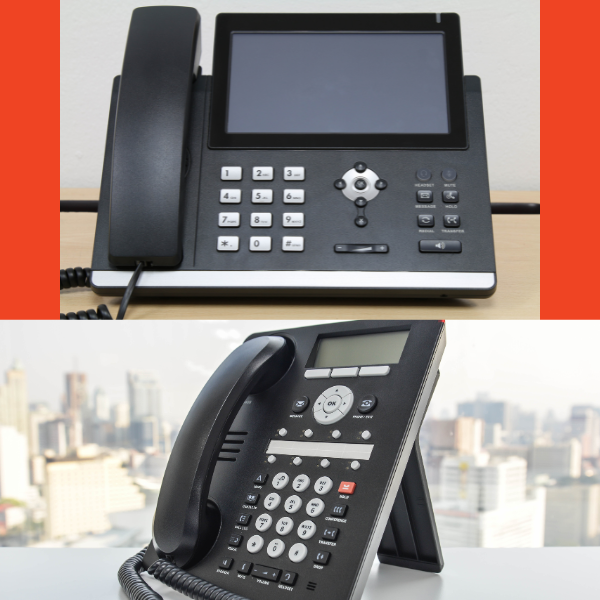
Before diving into the installation process, ensure you have the following:
- High-Speed Internet Connection: A stable broadband connection is crucial for clear voice quality.
- VoIP Service Provider: Choose a reliable VoIP provider like DIDforSale to get a VoIP number and access to SIP trunking services.
- VoIP Phone or Adapter: You can use a dedicated VoIP phone or an analog telephone adapter (ATA) to convert a traditional phone into a VoIP-compatible device.
- Router and Modem: A quality router ensures uninterrupted VoIP service.
- Power Source: Ensure your VoIP phone or ATA is plugged into a power outlet.
Steps to Set Up a VoIP Phone
1. Connect to the Internet
The first step is to connect your VoIP phone or ATA to your internet network:
- For VoIP Phones: Plug one end of an Ethernet cable into the phone’s LAN port and the other end into your router or modem.
- For ATA Setup: Connect your traditional phone to the ATA device using a phone cable, then plug the ATA into your router via an Ethernet cable.
2. Power On the VoIP Phone
Once connected, power on your VoIP phone by plugging it into a power outlet or using Power over Ethernet (PoE) if your phone supports it. The device will initialize and attempt to connect to your network.
3. Configure VoIP Phone Settings
Depending on your VoIP provider, you may need to enter specific settings to activate your phone:
- Locate the phone’s IP Address by navigating to the settings menu.
- Enter the IP address into a web browser to access the phone’s configuration page.
- Input the SIP Credentials provided by your VoIP provider, including username, password, and server details.
- Save the settings and reboot the phone to apply the changes.
4. Test Your VoIP Phone
Once configured, perform a test call to ensure proper functionality. Check for:
- Clear Audio Quality: If you experience choppy or delayed sound, consider upgrading your internet speed or adjusting Quality of Service (QoS) settings on your router.
- Dialing Capabilities: Ensure you can make and receive calls without issues.
5. Enhance Your VoIP Setup
For a more robust VoIP experience, consider these enhancements:
- Use a VoIP-Compatible Router: Some routers are optimized for VoIP traffic, reducing latency and call drops.
- Enable QoS Settings: Prioritize VoIP traffic to maintain call quality.
- Add Additional VoIP Features: Voicemail, call forwarding, and auto-attendants enhance usability for businesses.
How to SetUp VoIP Phone System: A Step-by-Step Guide by Cebod Telecom
How to Install VoIP Phones for Home Use
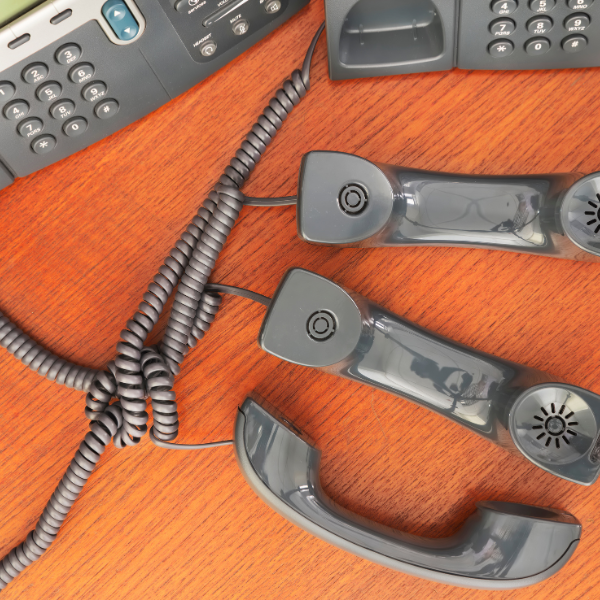
Setting up a VoIP phone at home follows the same steps but with a focus on convenience. Here’s what you need to do:
- Connect your VoIP phone or ATA to your home router.
- Enter the VoIP service credentials provided by your provider.
- Test the setup by making calls to check voice clarity and connection stability.
- Use mobile apps from your VoIP provider to extend your VoIP service to smartphones and tablets.
For more details on choosing the right VoIP plan, check out set up a VoIP phone page.
Troubleshooting Your VoIP Phone Setup
Even with a proper VoIP installation, you may occasionally encounter issues. Here are the most common problems and how to fix them:
1. No Dial Tone or Phone Won’t Register
If your VoIP phone shows “No Service” or fails to register, double-check the SIP credentials entered in your configuration page — even a single incorrect character in the username, password, or server address will prevent registration. Also confirm that your VoIP provider’s SIP server is reachable and that your router’s firewall isn’t blocking SIP ports (typically UDP port 5060).
2. One-Way Audio or No Audio at All
This is one of the most common VoIP complaints and is usually caused by a NAT (Network Address Translation) conflict. Your router may be preventing audio packets from reaching the phone. To fix this, enable STUN (Session Traversal Utilities for NAT) in your phone’s settings using the STUN server address provided by your VoIP provider. Alternatively, enable SIP ALG on your router — or disable it, as some routers handle it poorly and it can actually cause the problem.
3. Choppy, Robotic, or Delayed Audio (Jitter)
Poor audio quality is almost always a bandwidth or network congestion issue. First, run a speed test to confirm your internet connection meets VoIP requirements (a minimum of 100 kbps upload and download per concurrent call is recommended). Next, log into your router settings and enable Quality of Service (QoS), setting VoIP traffic as the highest priority. This ensures voice packets are never delayed by large file downloads or video streaming happening on the same network.
4. Echo During Calls
Echo is typically caused by audio feedback from the speakerphone or a low-quality headset. Try switching to a wired headset, reducing the speaker volume, or enabling echo cancellation in your phone’s audio settings if the option is available.
5. Calls Drop After a Few Minutes
If calls consistently disconnect after roughly 30–60 seconds, this is almost always a SIP session timeout issue caused by your router’s firewall dropping what it sees as an idle connection. Disable SIP ALG in your router settings and increase the SIP session timer in your phone’s configuration. Your VoIP provider’s support team can also help identify if the issue is on their end.
6. Can’t Receive Incoming Calls
If outbound calls work but inbound calls fail, check that your VoIP number is correctly assigned to your extension in your provider’s dashboard. Also verify that your router is not blocking incoming SIP traffic and that any port forwarding rules are correctly configured for your phone’s IP address.
VoIP Security: Protecting Your Phone System
VoIP systems, like any internet-connected technology, are vulnerable to specific security threats. Taking a few proactive steps can protect your business from costly attacks and privacy breaches.
1. SIP Fraud and Toll Fraud
Toll fraud is one of the most financially damaging VoIP threats. Hackers gain unauthorized access to your VoIP system and make large volumes of calls — often to international premium-rate numbers — running up enormous bills before anyone notices. To prevent this, set strict international calling restrictions in your provider’s dashboard, enable spending caps or call alerts, and use strong, unique passwords for all SIP accounts. Never use default credentials that come with your phone or adapter.
2. Use Strong Authentication and Passwords
Every SIP account should have a long, complex password containing a mix of uppercase and lowercase letters, numbers, and special characters. Avoid using easy-to-guess information like your business name or phone number. Where your provider supports it, enable two-factor authentication (2FA) on your VoIP account portal for an added layer of protection.
3. Enable Call Encryption (SRTP and TLS)
By default, many VoIP systems transmit calls as unencrypted data packets, making them vulnerable to eavesdropping. Secure Real-time Transport Protocol (SRTP) encrypts the actual voice data, while Transport Layer Security (TLS) encrypts the SIP signaling that sets up and manages calls. Check whether your VoIP provider and phone hardware support both protocols and enable them in your configuration settings to ensure private, secure conversations.
4. Keep Firmware Updated
VoIP phone manufacturers regularly release firmware updates that patch security vulnerabilities. Make it a habit to check for and apply firmware updates on all your VoIP devices every few months. Outdated firmware is one of the most common entry points for attackers.
5. Use a VPN for Remote Workers
If employees are using VoIP phones or softphones from home or public networks, consider routing their calls through a Virtual Private Network (VPN). A VPN encrypts all internet traffic, protecting SIP credentials and call content from interception on unsecured Wi-Fi networks.
6. Monitor Call Logs Regularly
Regularly review your call logs through your VoIP provider’s dashboard. Unusual patterns — such as a spike in call volume, calls made outside business hours, or calls to unfamiliar international numbers — can be early warning signs of unauthorized access. Many providers offer automated alerts for abnormal usage that you should activate as a baseline security measure.
Conclusion
Completing a VoIP phone installation is simple when you have the right equipment and provider. With proper setup and configuration, VoIP delivers reliable communication, advanced features, and significant cost savings for both homes and businesses. And with the troubleshooting and security practices outlined above, you can keep your system running smoothly and protected against threats from day one.
For a high-quality VoIP solution and seamless installation experience, contact DIDforSale today.